
Migrating from other providers
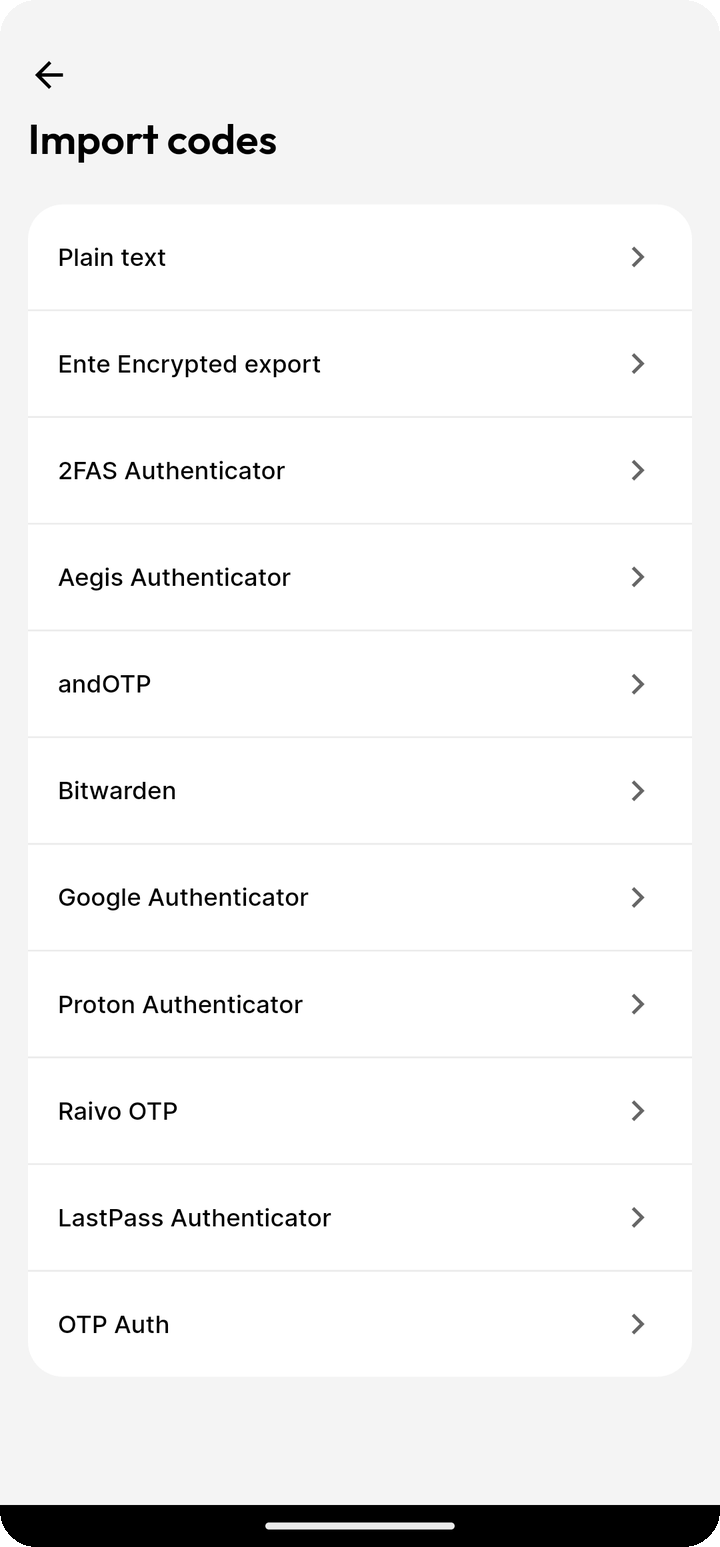
Ente Auth natively supports imports from many 2FA providers. In addition to the providers specifically listed in the documentation, the supported providers are:
- 2FAS Authenticator
- Aegis Authenticator
- andOTP (including encrypted backups, except MOTP)
- Bitwarden
- Google Authenticator
- LastPass
- OTP Auth
- Proton
- Raivo OTP
Details as to how codes may be imported from these providers may be found within the app.
To import from OTP Auth, export an encrypted backup in OTP Auth. In Ente Auth's Import codes screen, choose OTP Auth and select the .otpauthdb or .otpauthdp file. Single-account .otpauth exports are also supported. Enter the export password when prompted.
NOTE
Please note that this list may be out of sync, please see the app for the latest set of supported providers.
Which import option should I choose?
Choose the option that matches the file you exported and the formats supported by your installed Auth version:
- For an export from a listed provider, follow that provider's instructions in Import codes.
- For an encrypted Ente export, choose Ente Encrypted export and enter the password chosen when that export was created.
- For a supported plain text file containing
otpauth://entries, choose Plain text.
A filename or the name of the source app alone does not establish the format. Native 2FAS exports, for example, can differ between versions, and choosing Plain text is not a general workaround for a failed 2FAS import.
Keep the original authenticator and export until you have checked the imported entries. Do not upload secret-bearing exports to online converters or public issue trackers.
Ente Auth also supports imports from Auth's own encrypted exports and plain text files. Plain text files must be in the following format:
otpauth://totp/provider.com:[email protected]?secret=YOUR_SECRET
The codes can be separated by a comma or a new line.
So if your provider is not specifically listed, you might be still able to import from them by first converting the data from your old provider into these plaintext files and then importing those into Ente.
How do I check that every code imported?
- Compare the imported entries with the source authenticator, including the expected number of accounts and their names. Check for missing entries and duplicates.
- Verify that the imported codes work for the services you need. A successful import message or an entry count does not by itself verify the codes.
- If you use an Ente account, let the import sync and check that the entries appear on another signed-in device.
- Keep the old authenticator and a safe copy of the export until you have completed these checks.
If the import fails or only some entries appear, contact [email protected] with the source app and version, your Auth version and operating system, the export type, and the expected and imported entry counts. Support can help identify the appropriate format or version-specific steps.
Do not include the export file, setup keys, QR codes, or current authenticator codes in your message. Exports can contain the secrets needed to generate codes, so keep them private.